
Download Backup SafeKeeper – Reliable Automatic Backup & Sync Tool
Why Backup SafeKeeper Is the Smart Choice for Data Protection
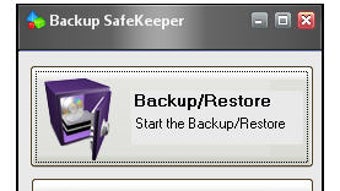
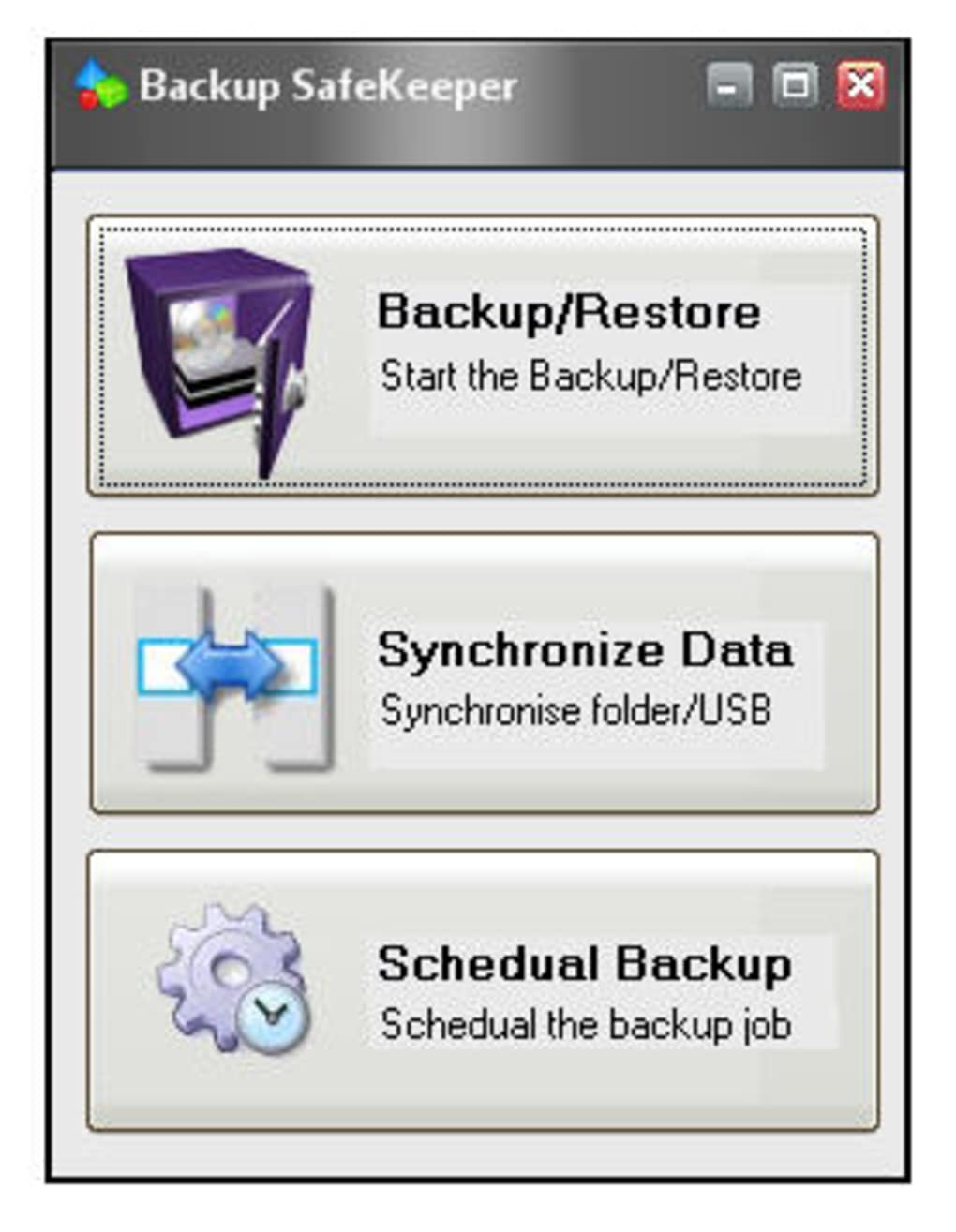
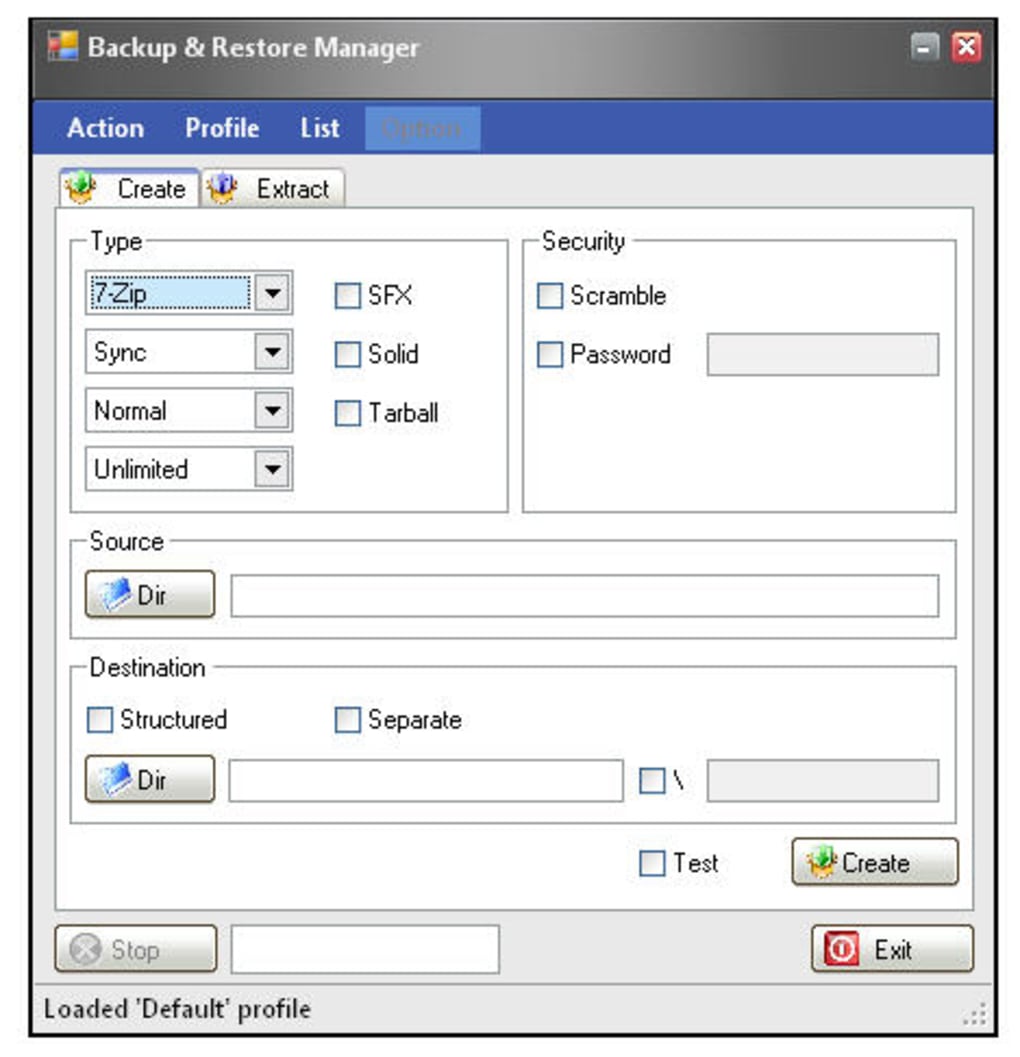
In an era where data loss can happen with a single accidental delete or a hardware failure, having a trustworthy backup solution is no longer optional—it’s essential. Backup SafeKeeper steps in as a compact yet powerful application that automates the creation of backup copies and keeps your files synchronized across devices. Unlike many bloated utilities that overwhelm users with endless options, SafeKeeper focuses on core functionalities: creating compressed archives, protecting them with passwords, and offering both full and incremental backup modes.
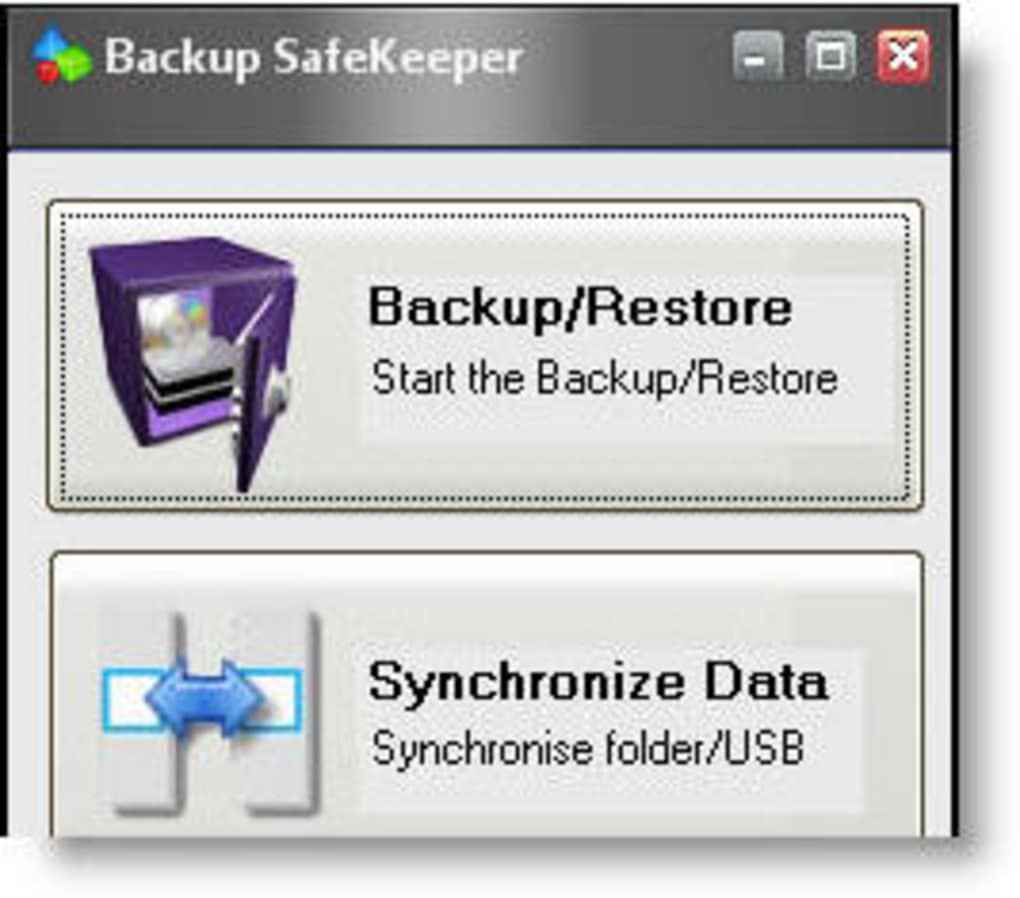
The program also integrates a scheduler, allowing you to set up recurring jobs that run in the background, ensuring that your most critical documents are always safeguarded without manual intervention. Whether you are a freelancer juggling client files, a small business protecting invoices, or a casual user who simply wants peace of mind, Backup SafeKeeper provides a straightforward interface that gets the job done quickly and securely. Its ability to sync data with removable drives, such as USB sticks, adds an extra layer of redundancy, giving you control over where your backups reside.
The balance between simplicity and flexibility makes it a standout tool in the crowded backup‑software market.
Core Features & Functional Overview
Feature List
- Full and incremental backup modes – create a fresh archive or update only changed files.
- Multiple compression formats (ZIP, 7z, TAR) with adjustable compression levels.
- Password protection for archives using AES‑256 encryption.
- Built‑in scheduler to automate daily, weekly, or monthly backup jobs.
- Two‑way data synchronization between PC and external drives (USB, external HDD).
- Support for custom backup destinations – local folders, network shares, or cloud mounts.
- Lightweight footprint – runs silently in the background without slowing down your system.
- Simple drag‑and‑drop interface for selecting files and folders.
The user experience begins with a clean dashboard that lists all configured backup jobs, their status, and the next scheduled run. Adding a new job is as simple as selecting the source folder, choosing a destination, and ticking the “Enable scheduling” box. From there, you can fine‑tune compression preferences and decide whether to encrypt the archive. Incremental backups are particularly valuable because they reduce storage consumption and speed up subsequent runs by copying only the files that have been modified since the last backup. This intelligent approach not only saves disk space but also minimizes the time your computer spends backing up, making it ideal for busy environments.
For users who need to keep a portable copy of their data, the sync tool offers a mirror‑like functionality. By selecting a source directory on your PC and a target folder on a USB stick, SafeKeeper will automatically copy new or updated files to the removable media each time the job runs. The reverse direction is also supported, enabling you to retrieve the latest version of your files from the USB drive back onto your computer. This bidirectional sync is perfect for professionals who work across multiple machines or need a reliable “take‑home” backup solution.
Installation, Setup & Compatibility
Step‑by‑Step Installation Guide
Installing Backup SafeKeeper is designed to be hassle‑free. Follow these steps to get the application up and running:
- Visit the official website and click the Download button for your operating system.
- Run the installer (.exe for Windows, .dmg for macOS). The wizard will guide you through license agreement and destination folder selection.
- Choose the default components (core backup engine, scheduler, sync module) and click Install.
- Once installation completes, launch SafeKeeper from the desktop shortcut or start menu.
- The first‑time launch triggers a brief onboarding wizard that helps you create your initial backup job.
System Requirements & Supported Platforms
Backup SafeKeeper runs natively on modern desktop operating systems:
- Windows 10, Windows 11 (64‑bit)
- macOS 10.15 Catalina and later (Intel & Apple Silicon)
While a mobile version is not currently offered, the desktop client can access network drives and cloud‑mounted folders, giving you indirect mobile compatibility via shared storage solutions. The application requires at least 2 GB of RAM and 100 MB of free disk space for installation. For optimal performance, especially when handling large archives or high‑compression levels, a solid‑state drive (SSD) is recommended.
Initial Configuration & First Backup
After launching the app, you’ll be greeted by the Job Manager. Click New Job and select the files or folders you wish to protect. Choose a destination—this could be a local directory, a mapped network share, or an external drive.
Set the backup type (Full or Incremental) and decide whether to enable encryption. For users who want automatic protection, enable the Schedule option and pick a frequency that matches your workflow. Finally, click Save & Run.
The first backup may take some time, depending on the amount of data, but subsequent incremental runs will be swift.
Pros, Cons & Frequently Asked Questions
Pros
- Easy to use: Intuitive UI makes backup creation a breeze.
- Flexible backup modes: Full and incremental options reduce storage usage.
- Strong security: AES‑256 encryption and password protection for archives.
- Scheduling automation: Set recurring jobs to run without manual intervention.
- Bidirectional sync: Keep files consistent between PC and removable drives.
- Lightweight: Low system resource consumption.
Cons
- Documentation is minimal; beginners may need to explore the UI to discover all features.
- No native cloud storage integration (requires mounting cloud drives manually).
- Only available for Windows and macOS; no Linux or mobile app.
- Advanced reporting and versioning are limited compared to enterprise‑grade solutions.
FAQ – Your Backup SafeKeeper Questions Answered
Can I encrypt my backups with a password?
Yes. Backup SafeKeeper supports AES‑256 encryption. When creating or editing a job, simply enable the “Password protect archive” option and enter a strong password.
What is the difference between full and incremental backups?
A full backup copies every selected file, creating a complete archive each time. An incremental backup only copies files that have changed since the last backup, which saves time and storage space.
Can I schedule backups to run when my computer is idle?
Yes. The scheduler includes an “Run only when idle” option. When enabled, the job will start only after the system detects no user activity for the specified idle period.
Is there a limit to the size of files I can back up?
Backup SafeKeeper itself imposes no hard limit; limits are dictated by the file system of the destination drive (e.g., FAT32 vs. NTFS) and available storage space.
How do I restore files from a backup archive?
Open the application, go to the “History” tab, select the desired archive, and click “Restore.” Choose a destination folder, enter the archive password if required, and the tool will extract the selected files.
Final Verdict & Call to Action
Backup SafeKeeper strikes an excellent balance between simplicity and powerful backup capabilities. Its lightweight design, coupled with essential features such as incremental backups, encryption, and scheduling, makes it a solid choice for individuals and small teams looking to protect their data without the overhead of enterprise‑grade solutions. While the lack of extensive documentation and native cloud integrations may deter power users, the core functionality is reliable and secure. If you’re searching for a dependable, easy‑to‑use backup utility that can also keep a USB stick synchronized, Backup SafeKeeper delivers exactly what it promises.
Ready to safeguard your files? Download Backup SafeKeeper now and set up your first backup in minutes. Protect your documents, photos, and projects before it’s too late—because a good backup plan should be automatic, secure, and effortless.







